Download

Get Quilleaf

Free for Android 8.0 and newer. No sign-up, no ads, and your data stays on your phone.

  • Version 0.14.0
  • Android 8.0 or newer
  • 3.1 MB

Coming to Google Play. Quilleaf is in internal testing on Google Play. When it’s open to everyone, we’ll link it right here. Until then, install it from this page.

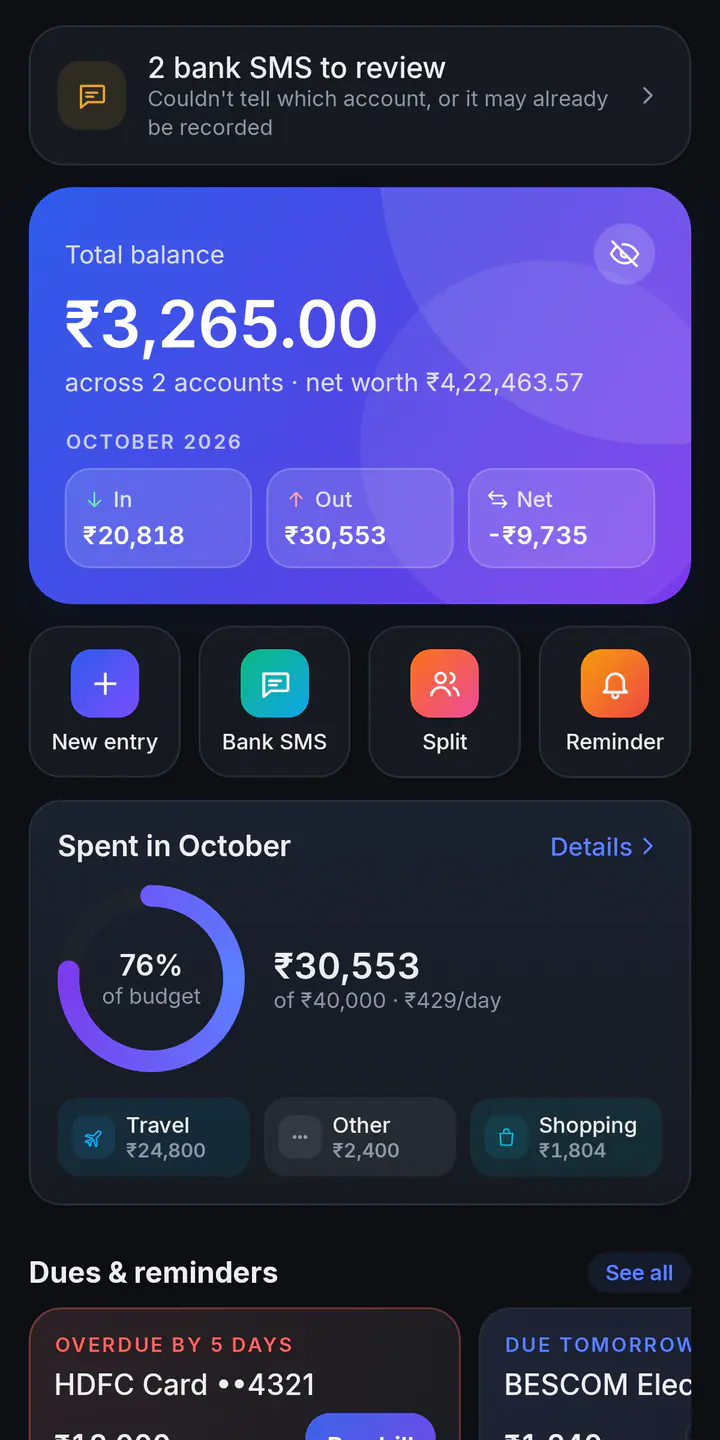
Quilleaf's Home screen: 2 bank SMS waiting for review, a total balance of ₹3,265.00 across 2 accounts with October's money in and out, quick actions for a new entry, bank SMS, splits and reminders, and October's spending at 76% of the budget.

Download the APK

There are two editions. They’re the same app with one difference: how they get your bank SMS.

Standard edition

Recommended

No SMS permission. Reads new bank SMS from your messages app’s notifications.

Download Quilleaf
Version
0.14.0
Size
3.1 MB
File
passbook-0.14.0.apk
SHA-256
b09650a124732e9b483b3b0e7e2f47747b19ab663f0efebd70a0be3446dde2bb

Always the latest: quilleaf.com/download/quilleaf.apk

WhatStandard (recommended)SMS edition
New bank SMSRead from your messages app’s notification, once you allow Notification accessRead as each SMS arrives, once you allow SMS access
SMS already in your inboxPaste or share them inImports them: the last 3 months, a year, or everything
Share or paste a bank SMSYesYes
Permissions it asks forNotifications; Notification access, which you turn on yourselfNotifications, plus Read SMS and Receive SMS
Installing from this pageGoogle Play Protect may warn you, or block itGoogle Play Protect may warn you, or block it
Everything elseSameSame

Which edition should I pick?

Pick the standard edition. It needs no SMS permission. Once you allow Notification access, it reads each new bank SMS from your messages app’s notification and adds it to the right account. The one thing it can’t do is read messages that came before you turned it on. Paste those in, or share them from your messages app.

The SMS edition reads your SMS inbox directly, so it can also bring in months of past messages. Because it asks for SMS access, Google Play Protect may block it when it’s installed from outside Google Play.

About Google Play Protect. Scammers misuse apps that can read notifications or SMS, so Play Protect is wary of any such app that comes from outside Google Play, and both editions can read one or the other. It may warn you, or block the install altogether. If it blocks Quilleaf, use the web app until Quilleaf is open to everyone on Google Play.

Both editions on this page are signed with the same key and are the same app underneath. You can install one over the other at any time, and your data stays.

How to install the APK

  1. Download

    The standard edition on your Android phone, from this page.

  2. Open the file

    Tap the download notification, or find it in your Downloads folder.

  3. Allow your browser to install apps

    If Android says your browser isn’t allowed to install unknown apps, tap Settings, turn on Allow from this source, and go back.

  4. Install

    Google Play Protect may say it doesn’t recognise the app. That’s expected for apps from outside Google Play. If you’d like to be sure the file is ours, check its SHA-256 first, then choose to install anyway. If Play Protect blocks the install, here’s why.

  5. Open Quilleaf

    Version 0.14.0 still shows its earlier name, Passbook, under its icon. It’s the same app.

  6. Turn on SMS reading, if you want it

    Tap Bank SMS on Home, then Turn on, and allow Notification access for Quilleaf.

If Android says Notification access is a restricted setting, open the app’s page in your phone’s Settings → Apps (version 0.14.0 is listed as Passbook), tap the ⋮ menu at the top, choose Allow restricted settings, and try again. Android can do this for apps installed from a downloaded file.

Google Drive backup may not work in a copy installed from this page. If Quilleaf says Google sign-in isn’t set up for this copy, keep using the daily backups on your phone, and save a copy now and then with Settings → Backups → Export .db.

Done installing? You can turn Allow from this source off again for your browser.

Check the download

A SHA-256 checksum is a fingerprint of a file. If the checksum of your download matches the one below, you have exactly the file we published, not a copy someone changed.

Version 0.14.0

  • Standard edition: b09650a124732e9b483b3b0e7e2f47747b19ab663f0efebd70a0be3446dde2bb
  • SMS edition: efe31ea64bb70af18dd2b9a80da219304739d5ce7f1fbb8d7f0d9bf6fdf30feb

On a computer, run the command for your system in the folder where the file is:

  • Windows (PowerShell): Get-FileHash passbook-0.14.0.apk -Algorithm SHA256
  • macOS: shasum -a 256 passbook-0.14.0.apk
  • Linux: sha256sum passbook-0.14.0.apk

Use the name of the file you downloaded: from an “Always the latest” link, it’s quilleaf.apk or quilleaf-sms.apk. Compare the long string it prints with the one above. Every character should match.

On your phone, some file managers can show a file’s SHA-256 in its details or properties.

For the extra careful: both editions are signed with the certificate whose SHA-256 fingerprint is

0C:F5:8F:59:BF:CD:85:17:60:99:CA:CA:B5:29:80:D3:92:48:64:B3:2E:B8:3A:ED:F1:44:BE:6F:7B:FD:0A:DD

You can see it with apksigner verify --print-certs from the Android SDK. Android only installs an update over an app when it’s signed with the same certificate.

Updating

Installed from this page? Quilleaf can’t update itself when it didn’t come from Google Play. Come back here when you’d like the newest version, download it, open it and tap Update. Your data stays as it is.

It’s a good habit to make a backup first: Settings → Backups → Back up now.

Testing from Google Play? Updates come through Google Play. They download in the background while you use the app, and Quilleaf asks you to restart when one is ready.

Moving between Google Play and this page? Google Play may sign its copy with a different key from the one on this page, and then Android won’t install one over the other. Save your data first with Settings → Backups → Export .db, uninstall, install the other copy, and use Import .db. Uninstalling deletes everything Quilleaf keeps on the phone, bank SMS records included.

Use it in your browser

On an iPhone, iPad or computer, open app.quilleaf.com. Nothing to install and no sign-up.

  • The same ledger, cards, budgets, reminders, groups, money lent and investments.
  • Bring in an Excel passbook with columns like Date, Credit, Debit and Remarks.
  • Reading bank SMS needs the Android app.
  • Your data is saved in that browser, on that device. It isn’t sent to our server.
  • Clearing your browser’s site data deletes it. Use Export .db in Settings now and then to keep a copy.

Moving between phone and browser: on Android, go to Settings → Backups → Export .db. In the web app, go to Settings → Import .db and pick that file. It works the other way round too. If the file is locked with your backup password, you’ll be asked for it.

Open the web app